Studio
Pressship Studio is the local web workspace for day-to-day WordPress plugin work. It brings the plugin list, local project registry, file editor, Plugin Check, WordPress Playground, AI assistance, package-size checks, ignore management, SVN release preparation, and guarded publish flows into one browser UI.
npx pressship studio
By default Studio binds to 127.0.0.1, opens your browser, and keeps running until you stop the terminal process with Ctrl+C.
Start Studio
npx pressship studio
npx pressship studio --no-open
npx pressship studio --host 127.0.0.1
npx pressship studio --port 9478
Options:
--no-openstarts the server without opening a browser.--host <host>changes the bind host. The default is127.0.0.1.--port <port>chooses the Studio server port.
Studio uses the same Pressship config directory as the CLI. You can see the active WordPress.org account, config directory, and current working directory on the Settings screen.
Requirements
Studio can open without a saved WordPress.org session, but the WordPress.org plugin list, review state, clone actions, and release credentials depend on pressship login.
For the full experience, have these available:
- a saved WordPress.org session from
pressship login; - local plugin folders with a valid plugin header;
svnfor approved-plugin checkout, tag, switch, and release workflows;- WordPress Playground dependencies managed by
pressship demo; - optional AI assistants such as Claude Code, Codex CLI, GitHub Copilot CLI, Cursor, Gemini CLI, OpenCode, or WP Studio.
Dashboard
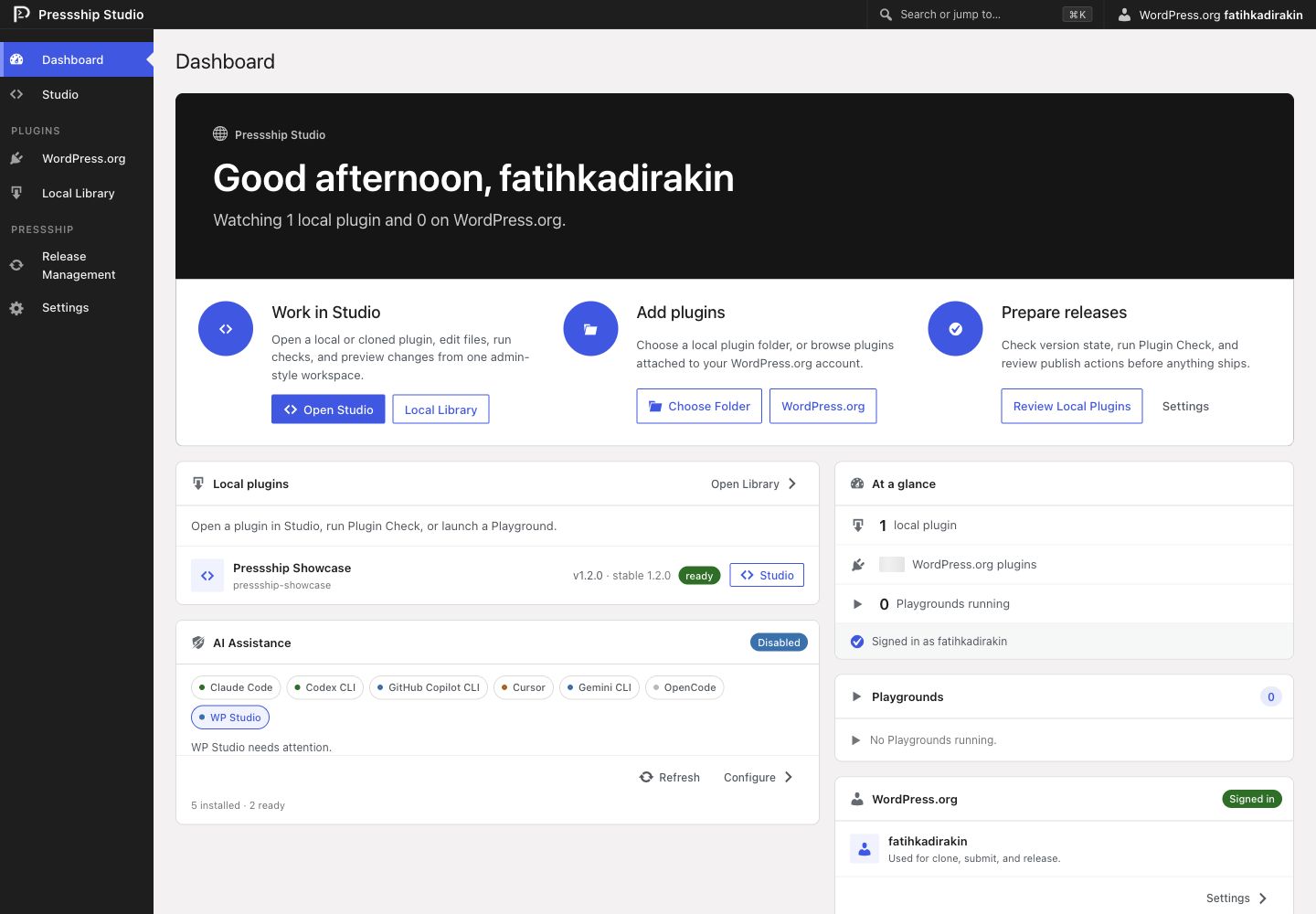
The Dashboard is the starting point. It shows local plugins, WordPress.org plugins, running Playgrounds, account state, and AI assistant state.
Use it when you want to:
- open a plugin in Studio;
- add a local plugin folder;
- refresh local or WordPress.org plugin lists;
- jump to release management;
- see whether AI assistance is enabled and ready;
- inspect live internal job output when Debug mode is enabled.
Local Library
The Local Library stores local plugin paths in Studio's registry. Adding a plugin does not copy files. Studio records the path and reads plugin metadata from that folder each time it refreshes.
Local plugins can be opened in the editor, checked, previewed in Playground, version-bumped, and published through dry-run-first workflows.
Removing a plugin from the Local Library only removes the saved Studio entry. It does not delete files from disk.
WordPress.org Plugins
The WordPress.org screen lists plugins attached to the saved WordPress.org account.
From there you can:
- inspect hosted metadata and readmes;
- clone or update a plugin SVN checkout into the default checkout directory;
- open an existing local checkout in Studio;
- compare remote plugin state with local library entries.
The default checkout directory is configured in Settings and defaults to ~/.pressship/plugins.
Opening a Workspace
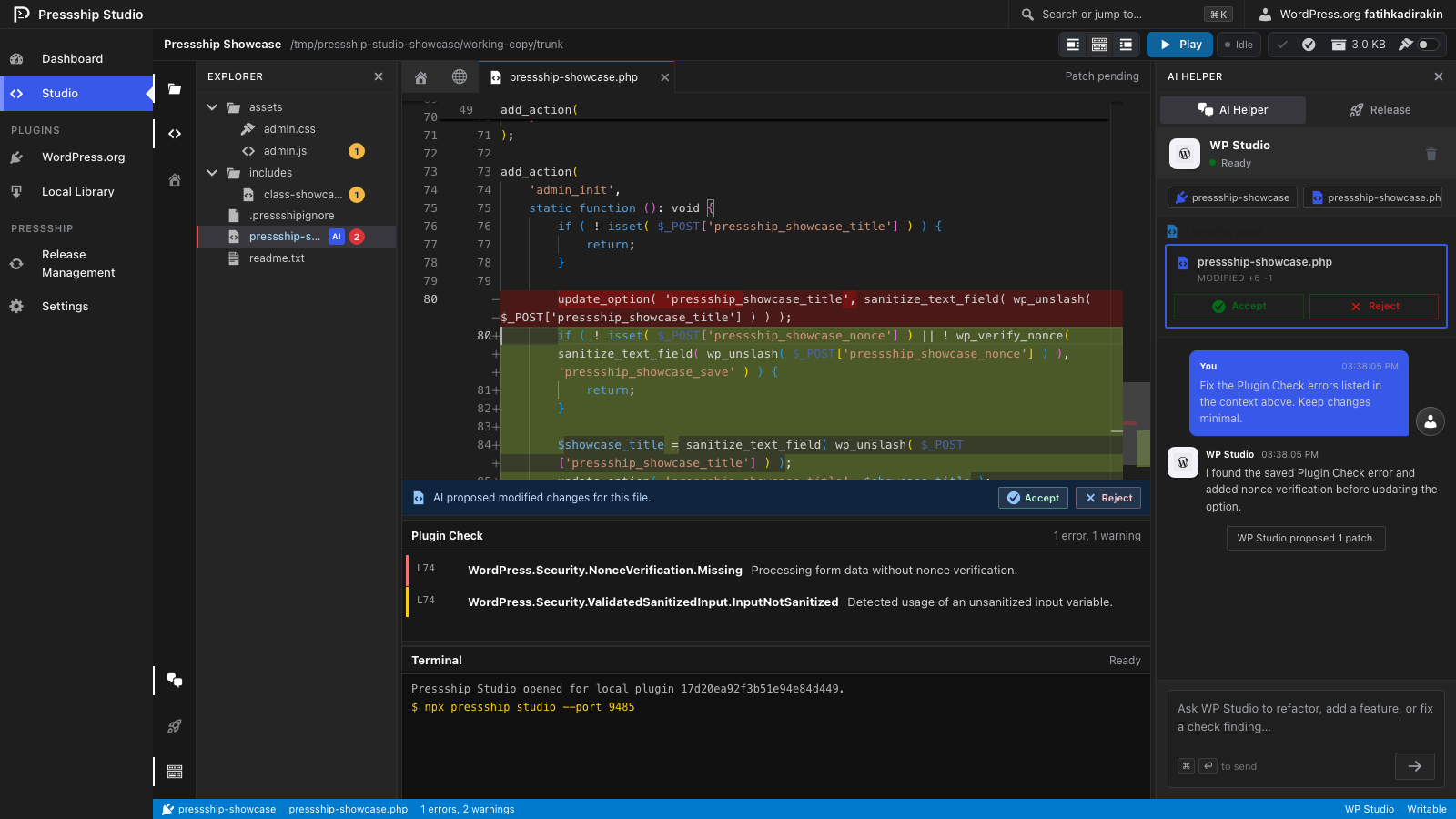
Use the Studio screen to open a tracked local plugin or choose a local plugin folder. A local workspace includes:
- a file tree for editable plugin files;
- a Monaco-powered editor;
- pinned Home and WP Admin tabs, plus one tab per opened file;
- Home and WP Admin Playground tabs;
- a bottom terminal for job output;
- a right sidebar for AI assistance and release operations;
- toggleable file, terminal, and right-sidebar panes.
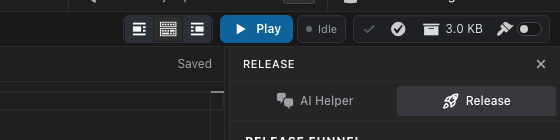
Remote WordPress.org plugins can be opened read-only when Studio only has hosted metadata. Clone the plugin first when you need to edit files or run local checks.
Studio keeps the URL in sync with the current page and opened file. You can bookmark or refresh routes such as /dashboard, /studio/<project>/<file>, /wordpress.org, /local, and /settings.
Editing Files
Studio opens local plugin files in an editor and keeps edits in the selected plugin directory.
The editor supports:
- file tree navigation;
- dirty-file indicators;
- save actions, including
Cmd+S/Ctrl+S; - Plugin Check markers;
- AI patch badges on changed files;
- WordPress readme highlighting for
readme.txt; - automatic reload when the opened file changes on disk and there is no unsaved draft.
If you switch files with unsaved changes, Studio asks before discarding the current draft.
Package Size and CLI Hints
The Size control estimates the installable package size without blocking the page. Studio caches the result and only recalculates when you ask again or when edits make the package state stale. When the package exceeds WordPress.org's upload limit, the toolbar highlights it.
The Studio terminal also teaches the equivalent CLI command for CLI-backed actions. For example, running Size prints a npx pressship pack ... --no-verify --ignore ... --json command, and publish dry runs print the matching npx pressship publish ... --dry-run command. Project ignore rules are expanded as repeatable --ignore flags so the terminal output can be copied into a shell.
Plugin Check
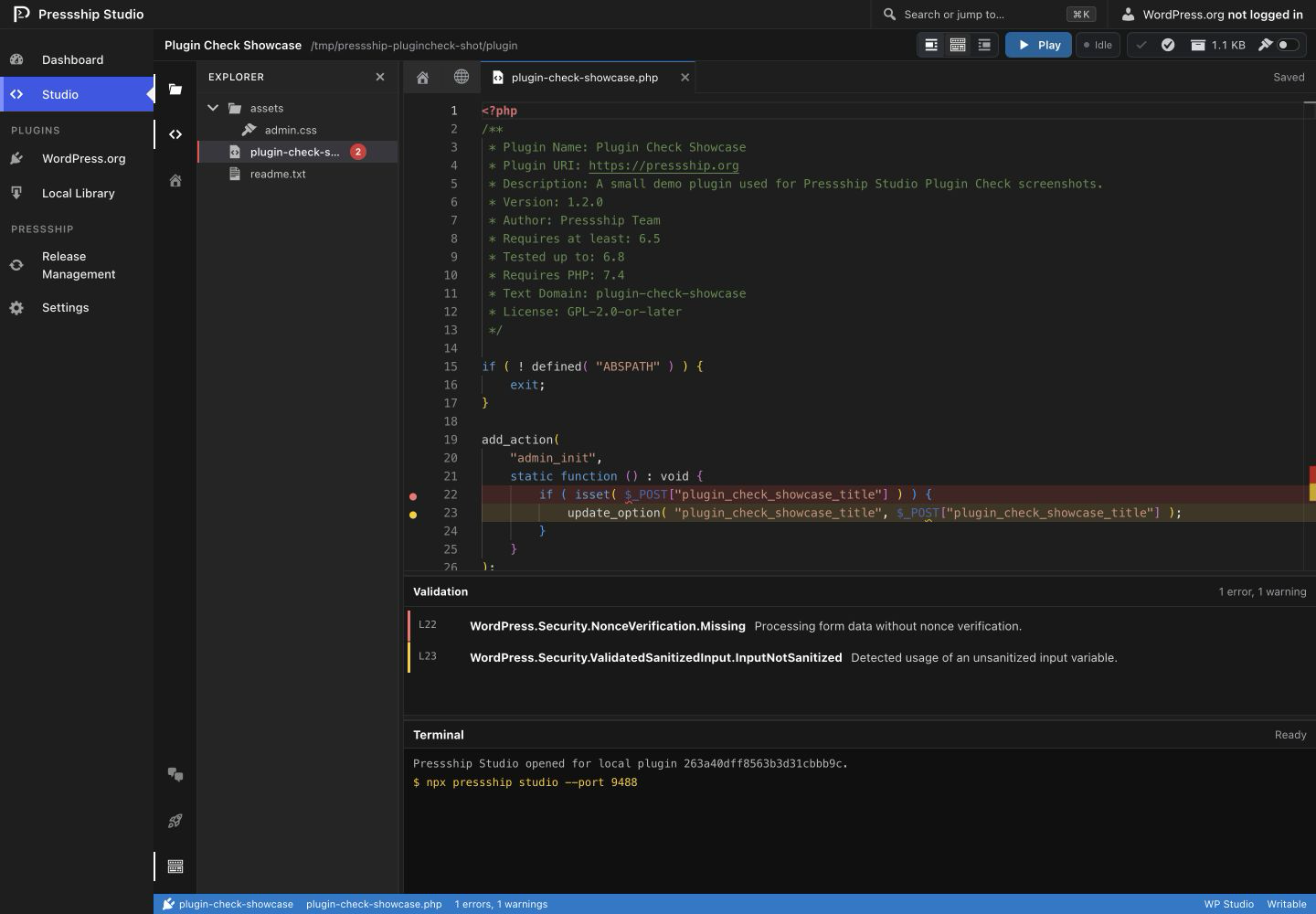
The Check action runs WordPress.org Plugin Check for the opened local plugin. Results are saved in Studio state and shown as:
- summary counts for errors, warnings, and info;
- file and line hints where possible;
- editor markers;
- check notes that can jump to the relevant file and line;
- release validation state.
Running Plugin Check again replaces the saved results. Saving or accepting AI patches can prune stale findings for changed files.
Ignore Rules
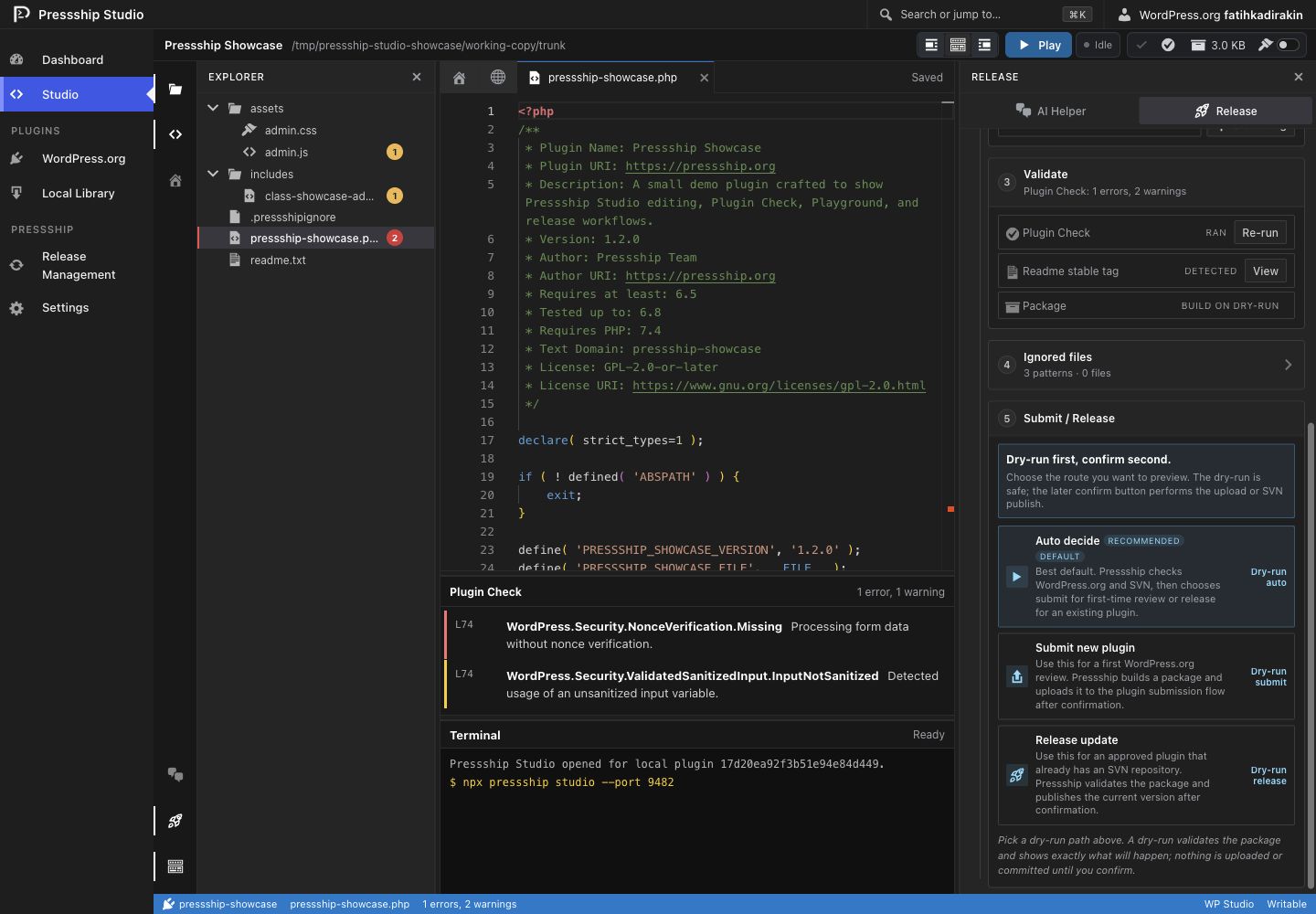
Studio manages project-specific package exclusions through .pressshipignore. The Explorer can add exact file rules or folder/** rules, ignored files stay visible but dimmed, and .git is always hidden from the Explorer.
The Release sidebar includes an Ignored files step. It starts collapsed, shows the number of patterns and matched files, and lets you remove exact rules. These rules are used by package size checks, submit/release dry runs, Plugin Check staging, zip creation, and SVN release filtering.
WordPress Playground
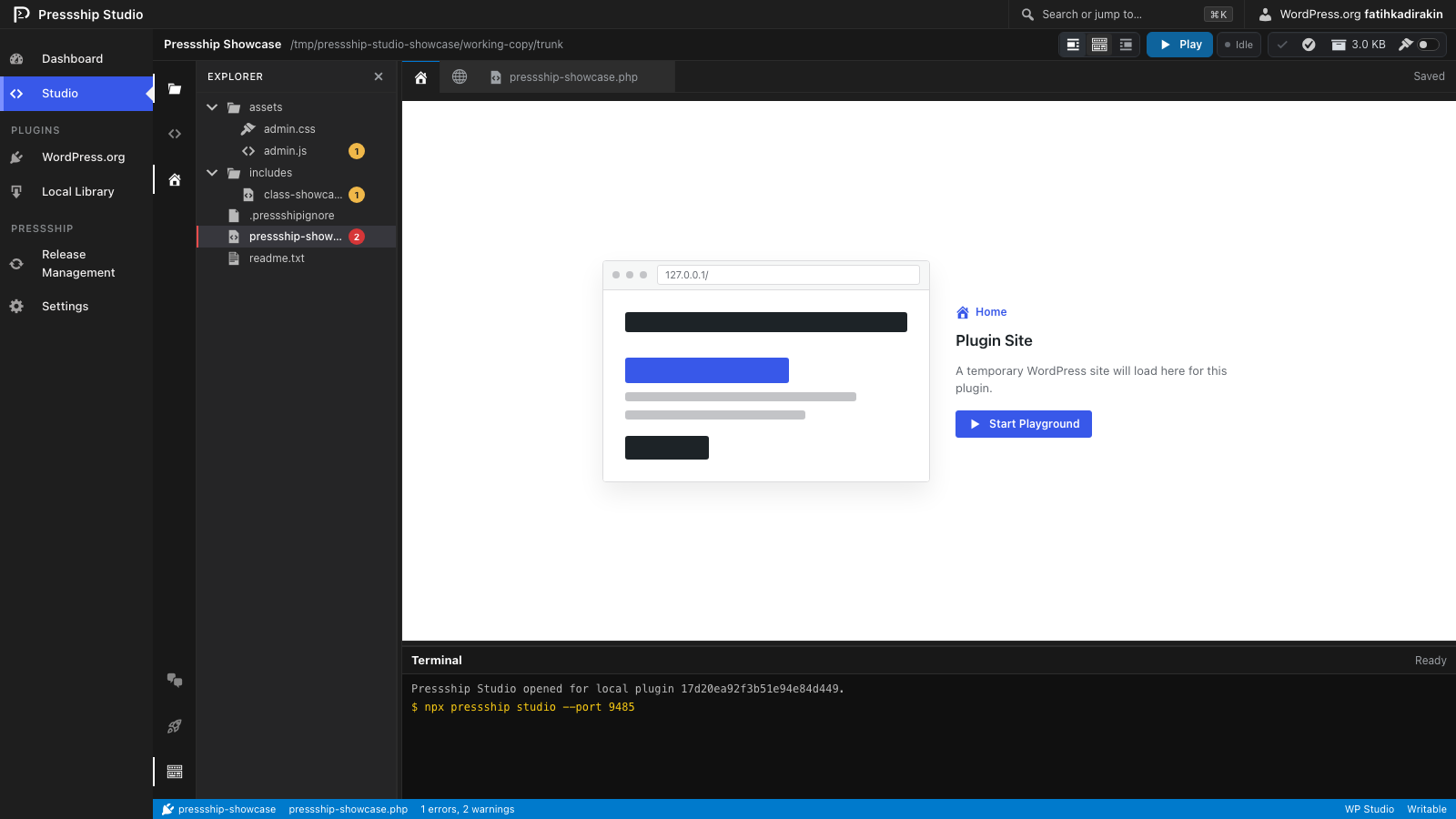
The Play action starts a local WordPress Playground server for the opened plugin and streams output into the Studio terminal.
Studio provides tabs for:
Home, the public site preview;WP Admin, withadmin/passwordshown when a Playground is running;- the editor tab for the selected file.
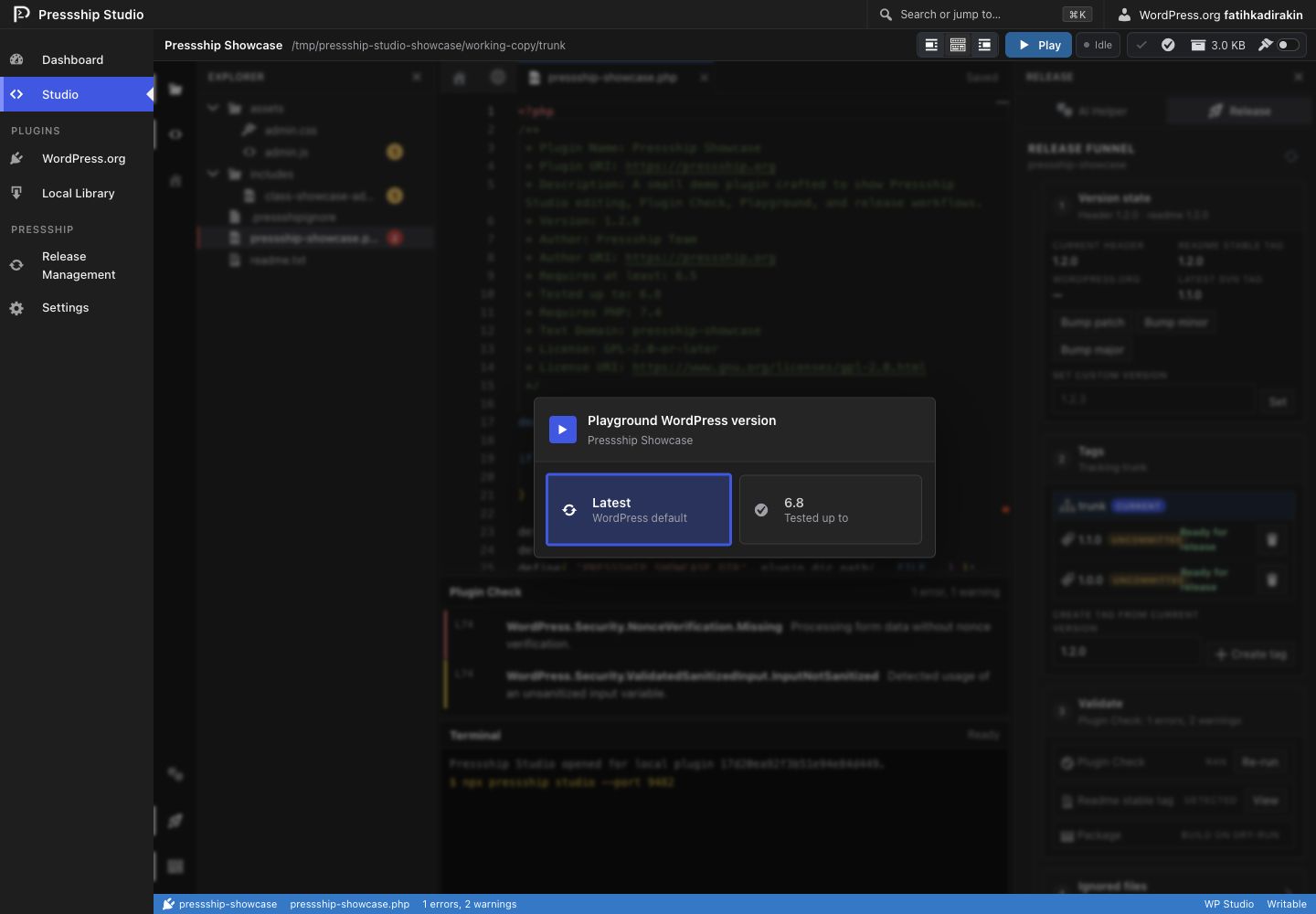
When a plugin declares a Tested up to version, Studio asks whether to run the latest WordPress or the tested version. Very old WordPress versions may be blocked because they are not supported by the Playground runtime.
Playground settings include:
- a port range, defaulting to
9500through9599; - database mode:
auto,sqlite, ormysql; - optional MySQL host, port, user, password, and database prefix.
In auto mode, Studio uses SQLite for supported WordPress versions and can use MySQL for legacy versions. When managed MySQL is needed, Pressship can use Docker or OrbStack.
AI Assistance
AI assistance is configured in Settings. Studio detects available Harness providers and shows each provider's status.
Supported assistants include:
- Claude Code;
- Codex CLI;
- GitHub Copilot CLI;
- Cursor;
- Gemini CLI;
- OpenCode;
- WP Studio.
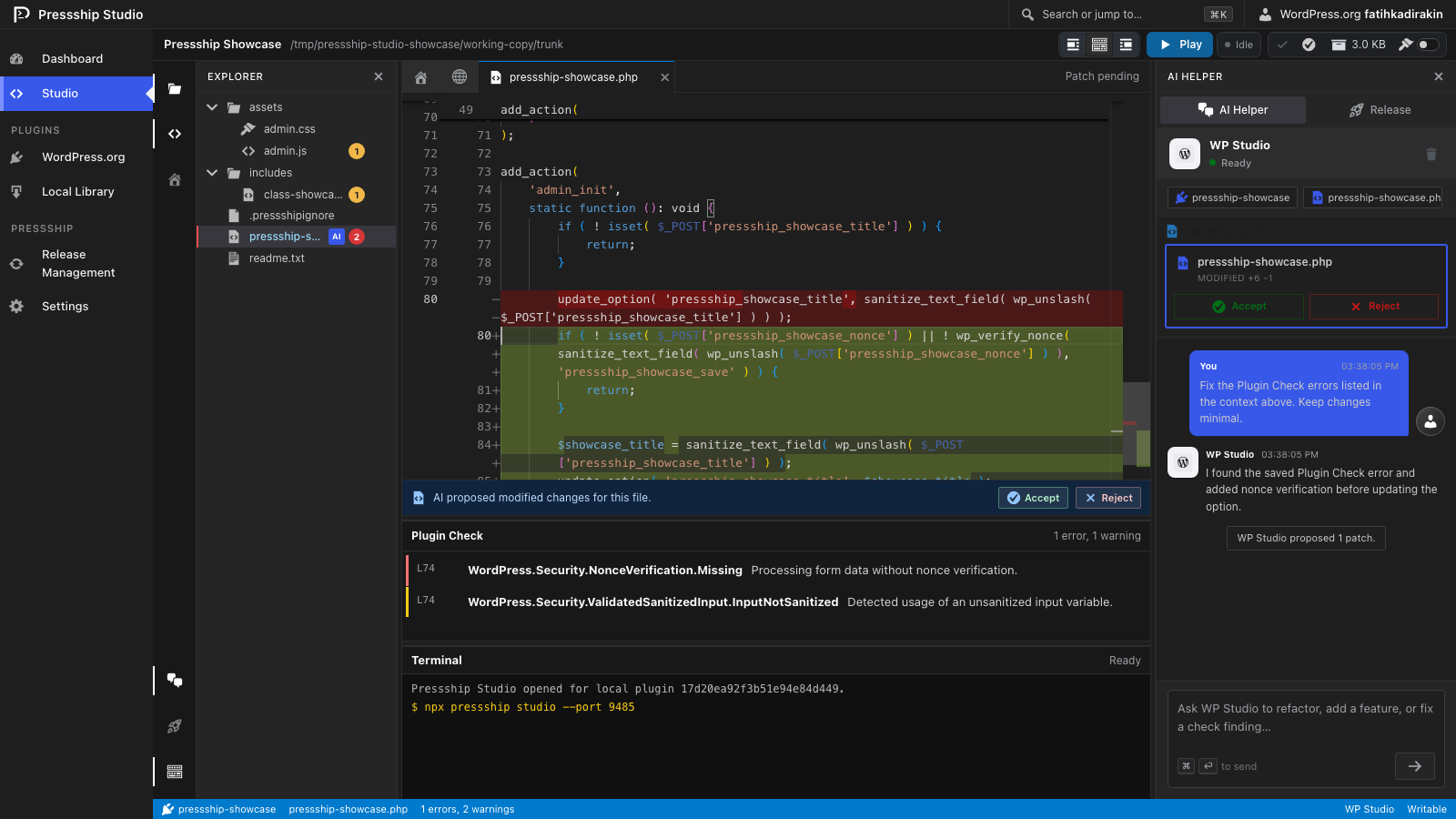
When you send a prompt, Studio does not let the assistant edit your plugin folder directly. It creates a temporary review workspace, passes the current plugin path, selected file, and saved Plugin Check context to the assistant, then compares the temporary workspace against your real plugin.
If the assistant changes files, Studio shows proposed patches. You can review each changed file and accept or reject patches one by one.
AI assistance is most useful after running Plugin Check because the prompt includes the saved check summary and findings.
Release Management
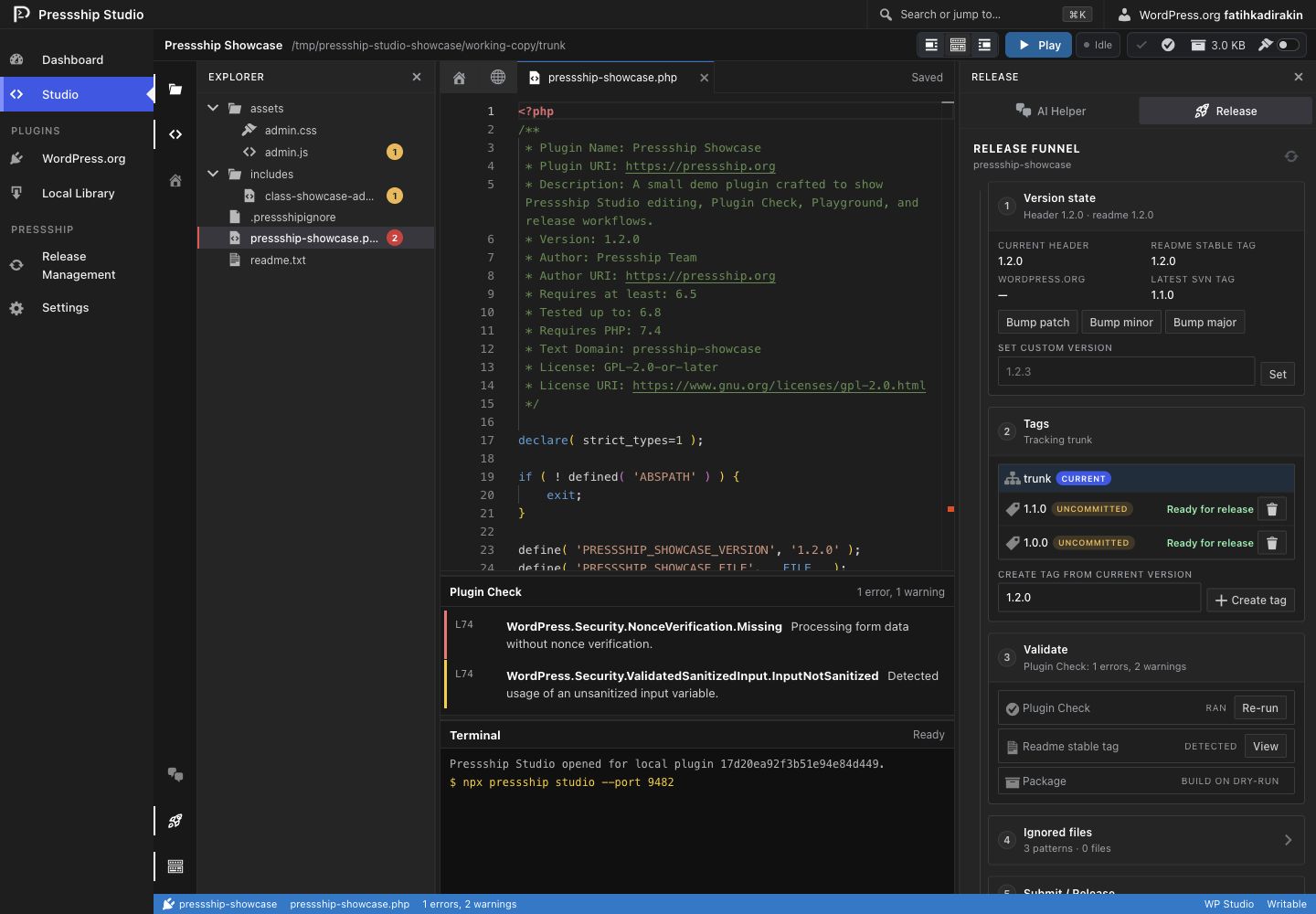
Studio has release controls in two places:
- the Release Management dashboard view for all local plugins;
- the Release sidebar inside an opened local plugin workspace.
Release management shows version state, duplicate-tag state, readme stable tag state, and publish readiness. It helps catch common release blockers before you run a real publish.
The Release sidebar can:
- read local and remote SVN tags;
- show whether the current working copy is on
trunkor a tag; - create a local uncommitted SVN tag from
trunk; - delete local-only uncommitted tags;
- switch the working copy between
trunkand tags; - review
.pressshipignorepatterns and matched files; - run Plugin Check;
- inspect version state;
- run dry-run submit, dry-run release, or auto dry-run;
- confirm a real submit or release after a successful dry run.
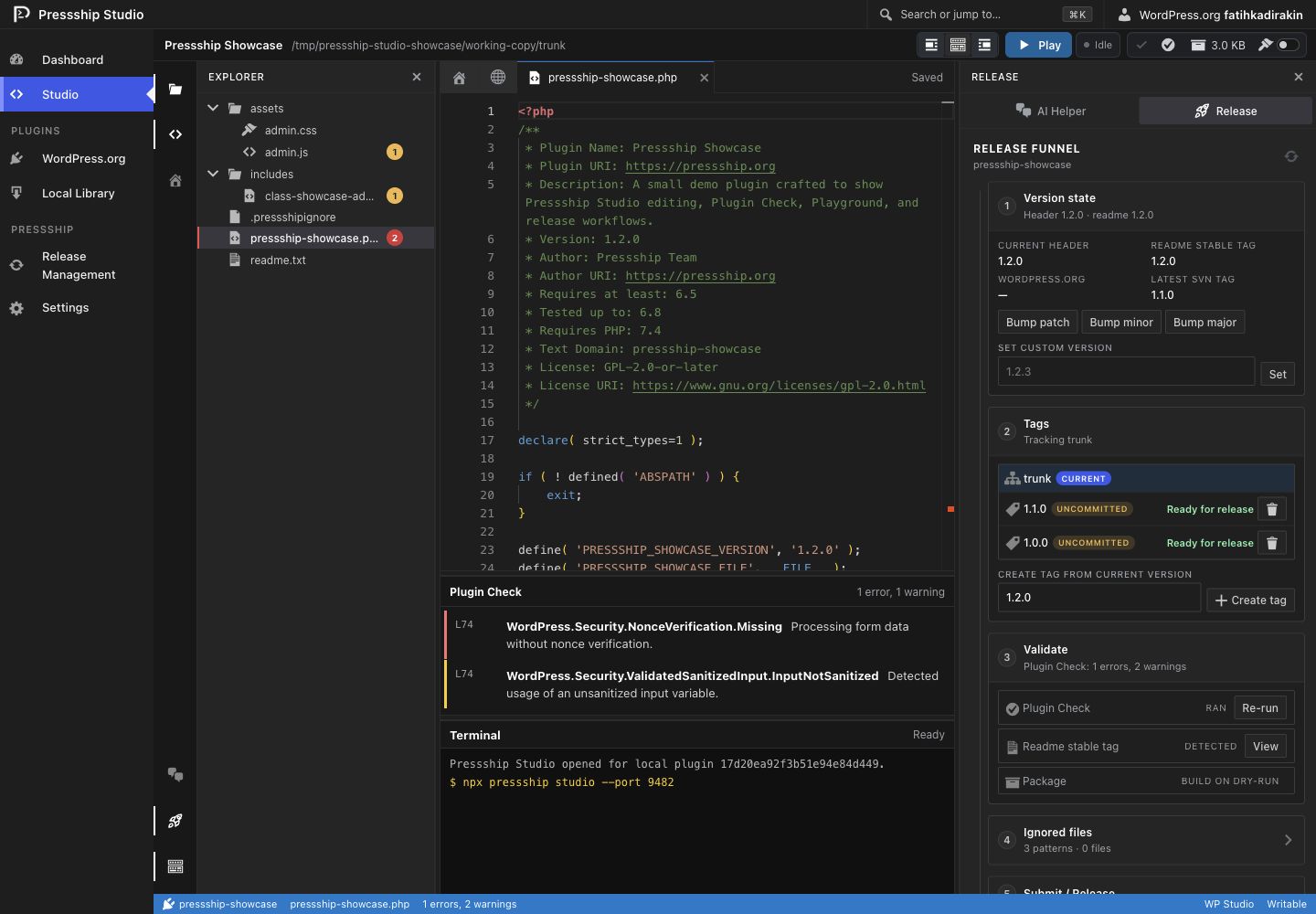
The Tags step lists trunk and known SVN tags, marks the currently checked-out ref, and flags local-only uncommitted tags. Use Switch to move the editable working copy between trunk and a selected tags/<version> ref; after the switch completes, Studio reloads the file tree and editor from the selected ref.
Studio refuses to delete remote-published tags. Published tags must be handled through explicit SVN workflows outside the local-only tag cleanup path.
Dry-Run-First Publishing
Studio publish and release actions are intentionally guarded.
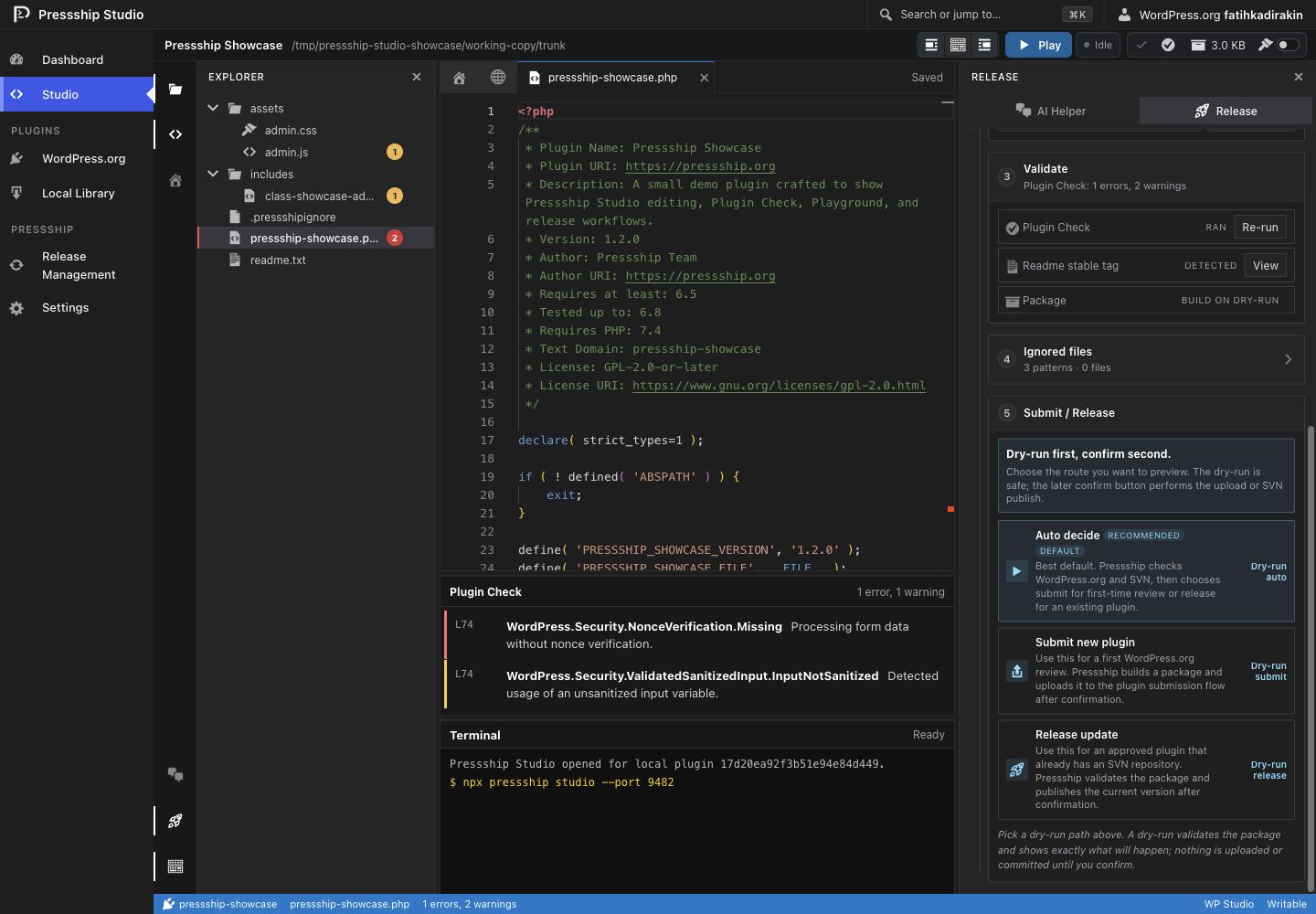
The flow is:
- Open a local plugin.
- Run Plugin Check or inspect existing findings.
- Review version state.
- Run a dry run: submit, release, or auto.
- Review the detected route, validation result, package summary, and release plan.
- Confirm the real action only after the dry run succeeds.
Step 5, Submit / Release, is where you choose which publish route to preview:
- Auto decide is the recommended default. Studio checks WordPress.org state and SVN availability, then chooses submit for a first-time review or release for an already-approved plugin.
- Submit new plugin forces the WordPress.org review submission path. Use it when the plugin has not been approved yet or needs to be uploaded to the submission flow.
- Release update forces the approved-plugin SVN path. Use it when the plugin already has a WordPress.org SVN repository and you want to publish the current version.
Every button in this step starts with a dry run. Dry runs validate the package, apply .pressshipignore, show whether the route is submit or release, and prepare a temporary approval token for the final confirmation button. Nothing is uploaded or committed until the later confirm action succeeds.
Confirmed publish approvals expire after about 20 minutes. If the plugin version changes after a dry run, Studio requires a fresh dry run before publishing.
For SVN releases, Studio uses the same generated WordPress.org SVN password flow as the CLI. If credentials are missing, run a CLI release once or save credentials before confirming releases from Studio.
Version bump buttons update the plugin PHP header and readme.txt stable tag together. The tag input defaults to the current local version so the create-tag and dry-run flow can move forward with fewer manual edits.
Settings
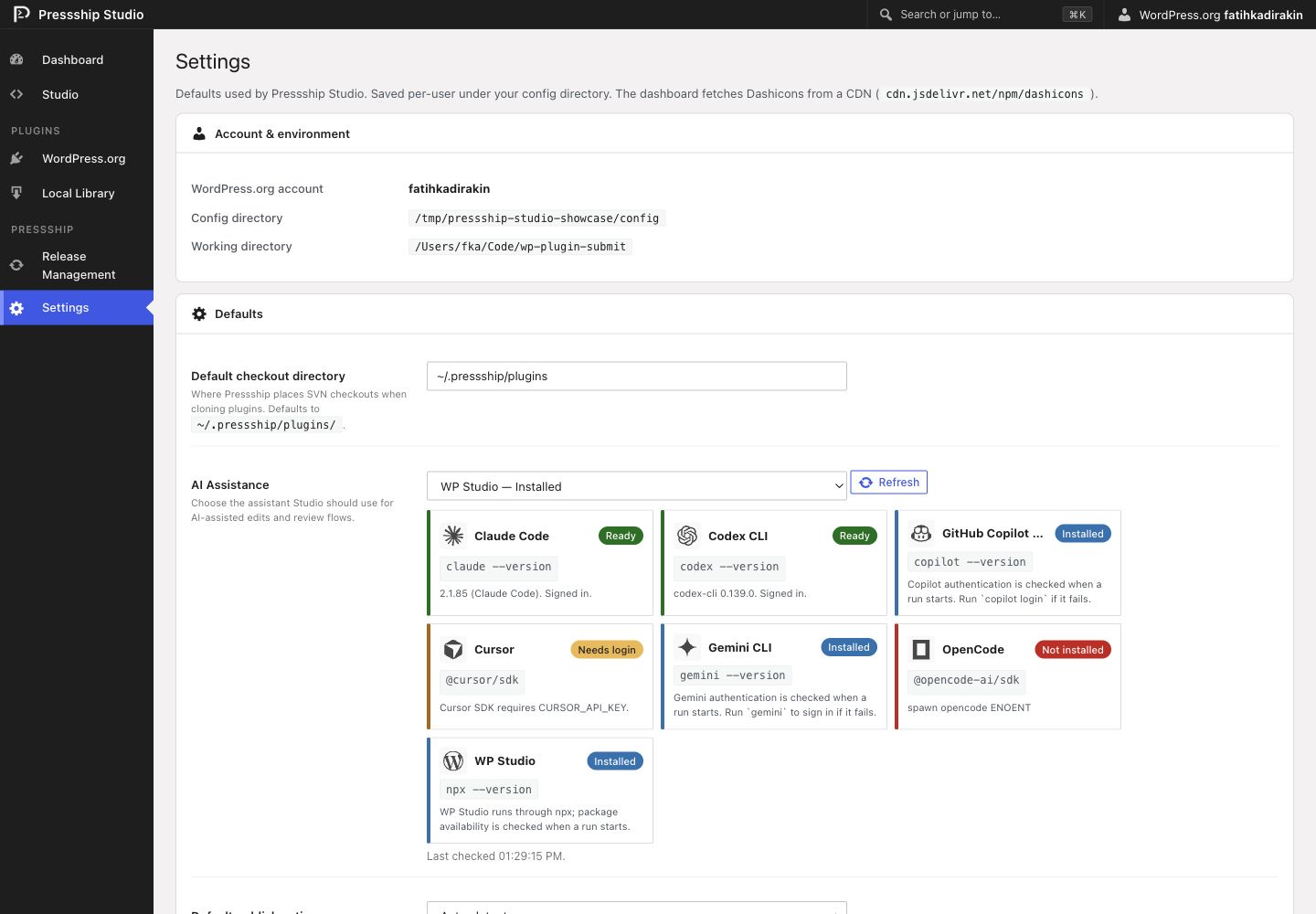
Settings are stored per user in the Pressship config directory.
Available settings:
- Default checkout directory for WordPress.org SVN clones.
- AI assistant selection.
- Default publish action: auto, submit, or release.
- Default version bump: patch, minor, or major.
- Playground port range.
- Playground database mode and MySQL connection settings.
- Auto-refresh interval for plugin lists.
- Confirmation prompts for destructive or release actions.
- Debug mode for the Activity panel.
Use 0 for the auto-refresh interval to disable automatic refresh.
Local Files and State
Studio stores local state under the Pressship config directory, normally ~/.config/pressship.
Important files include:
wordpress-org-storage.jsonfor the saved WordPress.org browser session;svn-credentials.jsonfor saved generated SVN passwords;studio-local-plugins.jsonfor the local plugin registry;studio-settings.jsonfor Studio settings;studio-plugin-check-state.jsonfor saved Plugin Check findings;.pressshipignorein each managed plugin directory for project package exclusions;cache/for temporary Studio packages and support files.
Settings and registries are written with user-only file permissions where possible.
Security Model
Studio is designed as a local tool.
- It binds to
127.0.0.1by default. - Each server run generates a token for mutating API requests.
- Job event streams also require the token.
- Confirmed publish and release jobs require a successful dry run.
- AI work happens in a temporary review workspace before patches can be accepted into the real plugin folder.
- Local file edits stay in the selected plugin directory.
Avoid binding Studio to a public network interface unless you are intentionally exposing it on a trusted network.
Troubleshooting
If WordPress.org plugins do not load, run pressship login again and restart Studio.
If release actions complain about SVN, install Subversion or use the CLI with --no-install-svn when you do not want Pressship to offer installation help.
If AI assistance says an assistant is missing, install or authenticate that assistant, then click Refresh in Settings.
If Cursor is shown as needing login, set CURSOR_API_KEY before starting Studio.
If Playground cannot find a port, expand the port range in Settings or stop old Playground processes.
If a confirmed publish button disappears or reports an expired approval, run a fresh dry run. This is expected protection against stale release state.